Connecting Your YouTube Channel
Link your YouTube channel to PreachKit so you can browse your videos and import them as sermons from inside the Analyze flow.
Connecting your YouTube channel lets PreachKit see your uploaded videos so you can import them as sermons directly from the Analyze Sermon flow. The connection takes about a minute and only requires signing in with Google.
What You'll Learn
- Where to find the YouTube connection settings
- How to connect and confirm your channel
- How to disconnect if needed
Step-by-Step
Open Settings and go to Sharing
Click Settings in the sidebar, then select the Sharing tab at the top of the page.
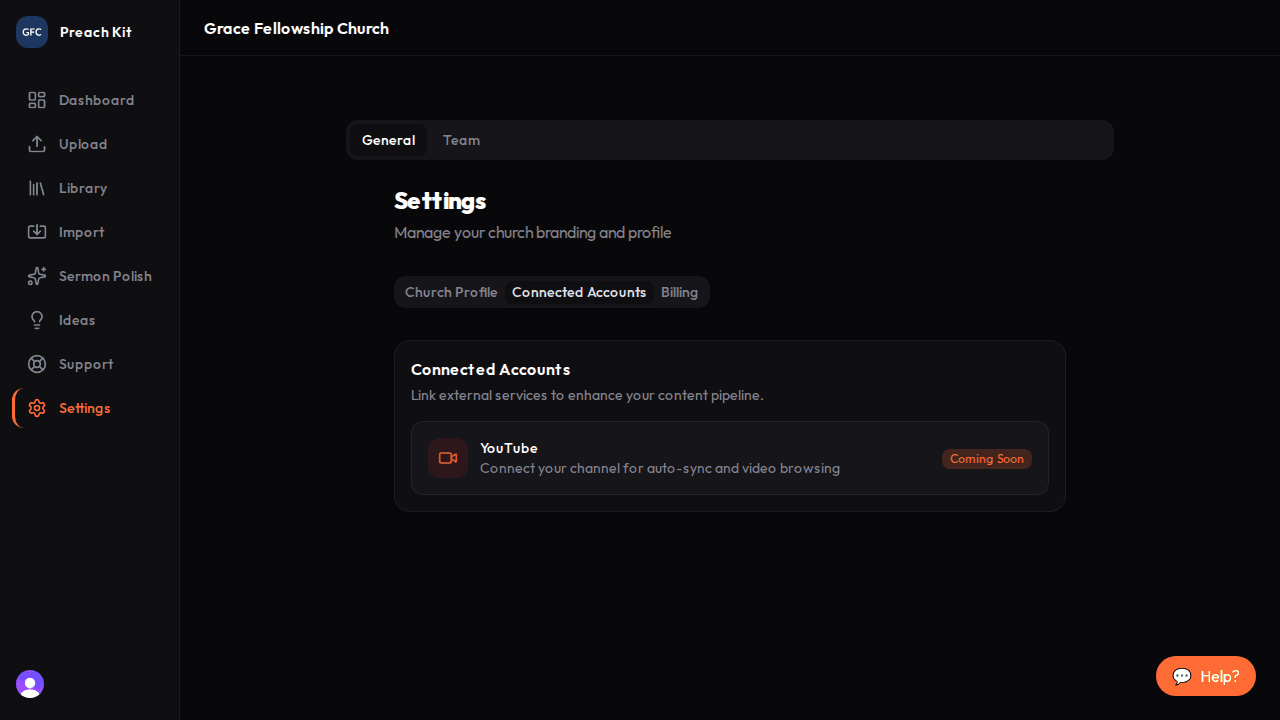
The YouTube connection card is on the Sharing tab Click Connect
In the YouTube card, click the Connect button. Your browser will open a Google sign-in page.
Sign in with the Google account that owns the YouTube channel you want to link. If you manage multiple channels, make sure you choose the correct one.
NotePreachKit requests read-only access to your YouTube channel's video list. It cannot modify, upload, or delete any videos on your channel.
Grant access and return to PreachKit
After you sign in and approve the permissions, Google redirects you back to PreachKit automatically. The page will open on the Sharing tab and show a confirmation message.
The YouTube card will now display a green Connected badge alongside your channel name.

A green badge confirms your channel is connected
After connecting, head to Analyze Sermon and switch the source toggle in Step 1 to YouTube — your channel's videos will be browsable right inside the flow.
Common Questions
What if the connection fails? If you see an error message after returning from Google, try clicking Connect again. Make sure you approve all requested permissions on the Google consent screen and that you are signing in with the account that owns your channel.
Can I connect more than one YouTube channel? PreachKit supports one connected YouTube channel per church account. To switch channels, disconnect the current one and connect a different Google account.
How do I disconnect? In the YouTube card on the Sharing tab, click Disconnect. This removes the connection from PreachKit. Your YouTube videos and channel are not affected.
Do I need to reconnect periodically? In most cases, no. If your connection expires due to a password change or revoked access, PreachKit will show a disconnected status and you can reconnect at any time.
What's Next?
With your channel connected, you can browse and import individual videos right inside the Analyze flow — see /guide/youtube/importing-from-youtube for the full walkthrough.