Browsing Your Library
Find and open any sermon in your archive using the Sermon Library — your central home for every recording you have uploaded or imported.
The Sermon Library is where every recording your church has uploaded or imported lives. Each sermon is displayed as a card showing its title, date, speaker, series, scripture references, and current status — all at a glance before you even open it.
What You'll Learn
- How to open and navigate the Sermon Library
- What each sermon card shows
- What the status indicators mean
- How to open a sermon's detail page
Step-by-Step
Open the Sermon Library
From your dashboard, click Sermons in the sidebar, or click the Sermon Library link on the dashboard home page. The library loads your full archive, 20 sermons per page.
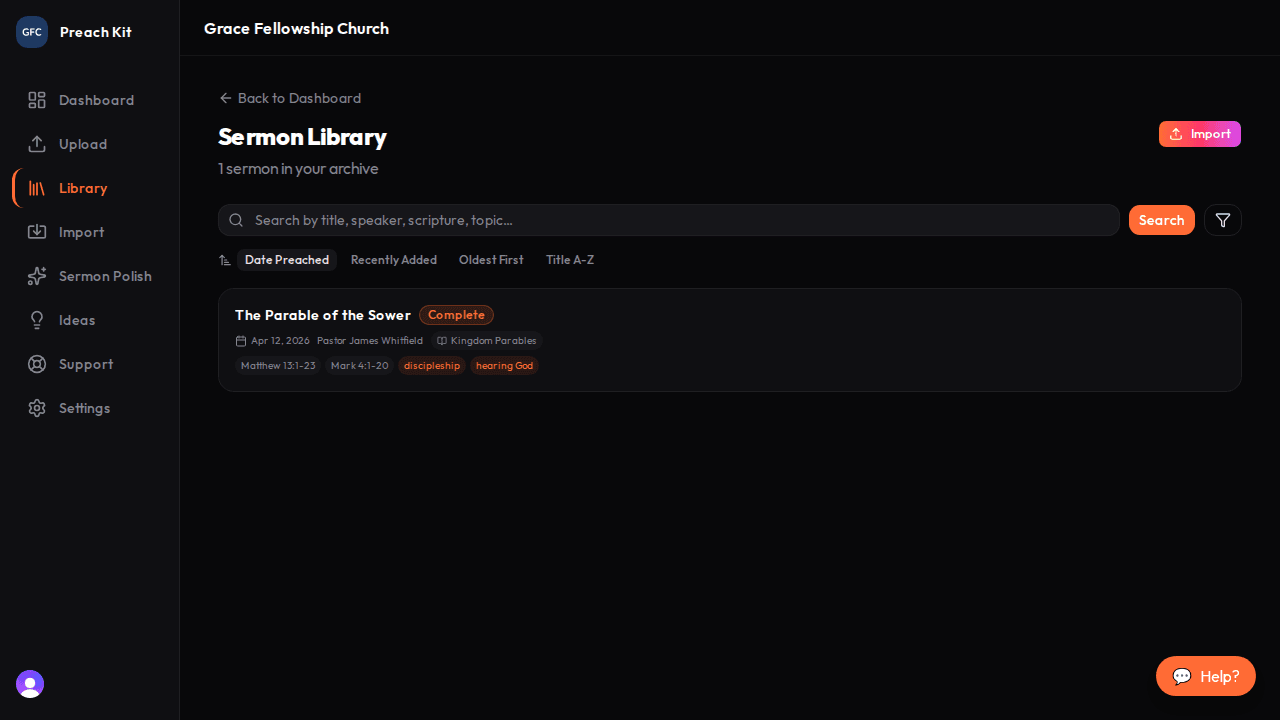
The Sermon Library — your full archive in one place Read a sermon card
Each card in the list shows:
- Title — the name of the sermon
- Status badge — a colored label showing where the sermon is in its processing lifecycle (see below)
- Date preached — shown with a calendar icon when available
- Speaker name — the preacher on record
- Series — a series label with a book icon if the sermon belongs to a series
- Scripture references — grey pills listing each passage
- Topics — orange pills for AI-assigned topic tags

All the key details surface on the card without opening the sermon Understand the status badges
Badge What it means Uploading The recording file is still being received Ready File uploaded, waiting for you to start processing Transcribing PreachKit is converting the audio to text Generating AI is writing your selected content outputs Complete All outputs are ready to use Partial Some outputs finished; others may still be generating Failed Processing encountered an error — click the sermon to retry Open a sermon
Click anywhere on a sermon card to open its detail page. There you can play the recording, view the transcript, generate or regenerate content outputs, and download finished pieces.
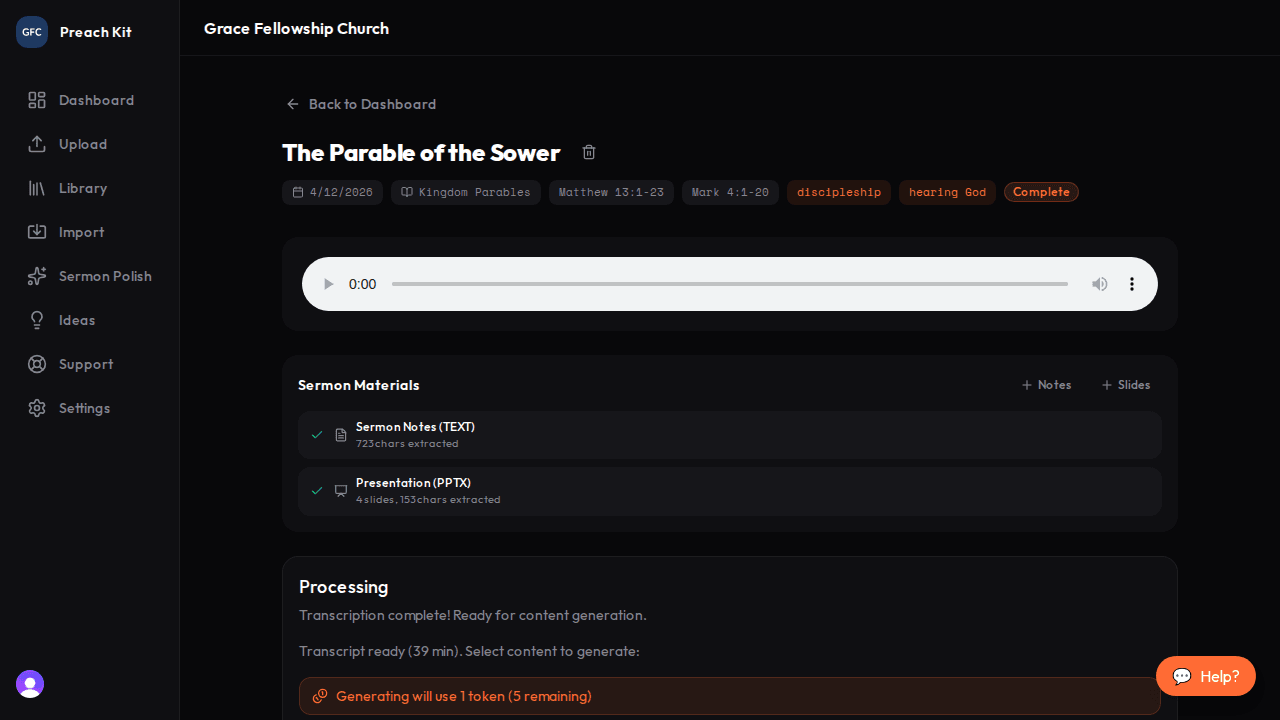
The sermon detail page — player, outputs, and processing status in one view
Sermon cards are clickable along their entire row — you do not need to hit a specific button. Hover over a card and it lifts slightly to confirm it is interactive.
Common Questions
How many sermons appear on each page? The library shows 20 sermons per page. Use the Previous and Next buttons at the bottom to move through your archive, or use search and filters to narrow down to a specific subset.
Can I delete a sermon from the library page? Deletion is done from the sermon's detail page, not the library list. Open the sermon, then use the delete option next to the title.
Why does a sermon show "Partial" instead of "Complete"? Partial means at least one content type finished generating, but others are still in progress or encountered an issue. Open the sermon to see which outputs are ready and which may need to be regenerated.
What's Next?
Once you are comfortable browsing, learn how to narrow down large archives using Search and Filter.