Attach Notes and Slides
How adding your sermon notes or presentation slides to an upload leads to richer, more accurate generated content.
A recording alone gives PreachKit the spoken words. Adding your written notes or presentation slides gives it the structure — the headings, key points, and quotes you planned in advance. The result is more accurate transcription recognition and generated content that better reflects the shape of your sermon.
What You'll Learn
- Where to find the notes and slides upload areas
- Which file formats are accepted
- A special tip for Keynote users
- What difference attaching files actually makes
Why It Helps
PreachKit reads your notes and slides alongside the transcript when generating content. This means:
- Better accuracy — terms, names, and scripture references in your notes help the transcription engine recognise them correctly
- Better structure — outlines and headings in your notes guide the AI to produce content that follows the flow of your message rather than a generic summary
- Better quotes — if a key quote is written in your slides, it will appear in generated social posts exactly as you intended
Neither file is required. If you do not have them, PreachKit works from the transcript alone.
Step-by-Step
Find the supplemental upload areas
On Step 1 of the upload form (the Upload step), scroll below the main recording drop zone. You will see a row with two smaller upload areas:
- Add notes (TXT, PDF, DOCX) — for your written sermon notes or manuscript
- Add slides (PPTX, Pro) — for your presentation file
These areas are only shown in the Upload File tab, not in the YouTube import flow.
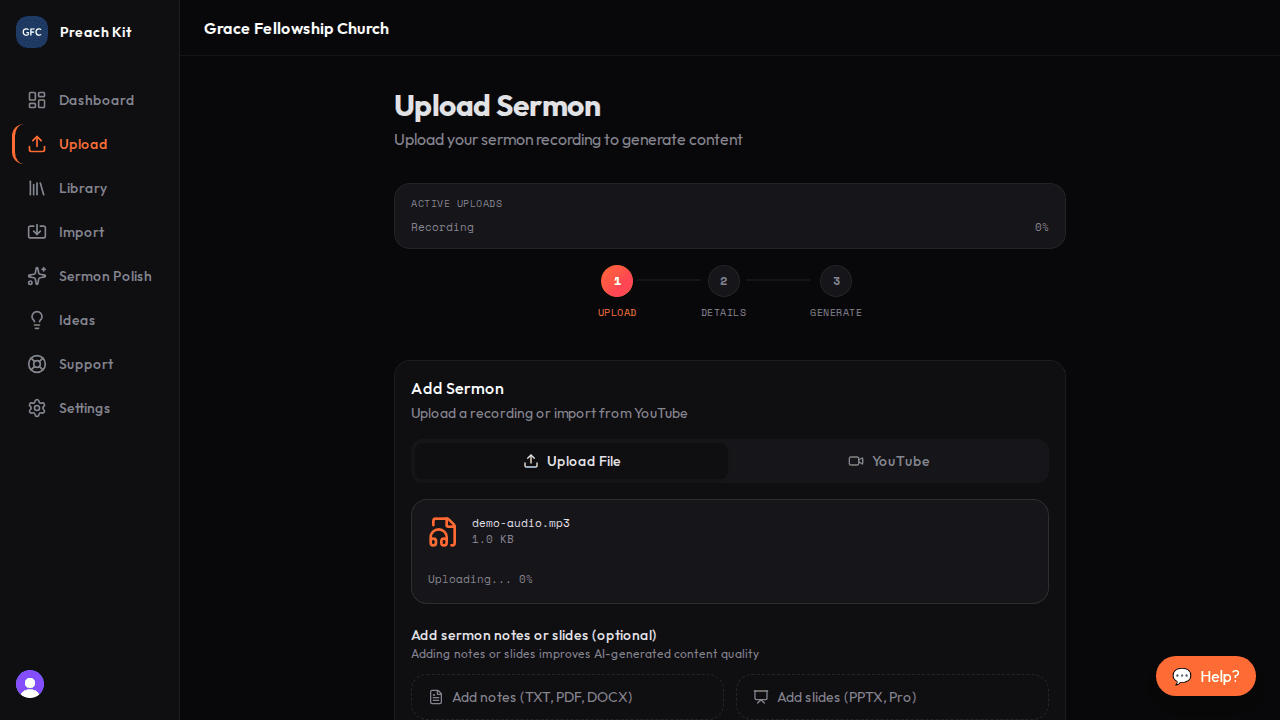
Notes and slides upload areas — both optional Upload your notes
Click Add notes (TXT, PDF, DOCX) to browse for your file. Supported formats are plain text (.txt), PDF, and Word documents (.docx). The file uploads in the background alongside your recording — you will see a percentage counter.
When the upload finishes, the notes card shows a green Uploaded badge.
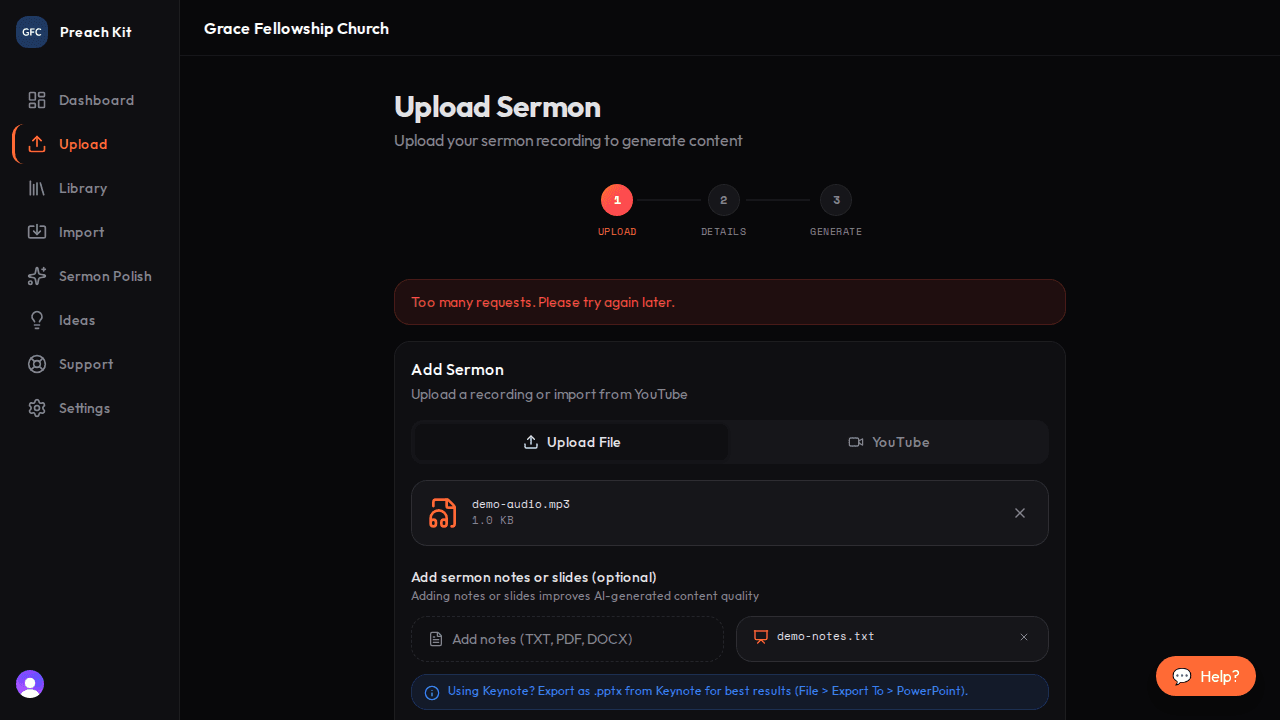
Notes uploaded successfully Upload your slides
Click Add slides (PPTX, Pro) to browse for your presentation file. Accepted formats are PowerPoint (.pptx) and ProPresenter (.pro6, .pro7).
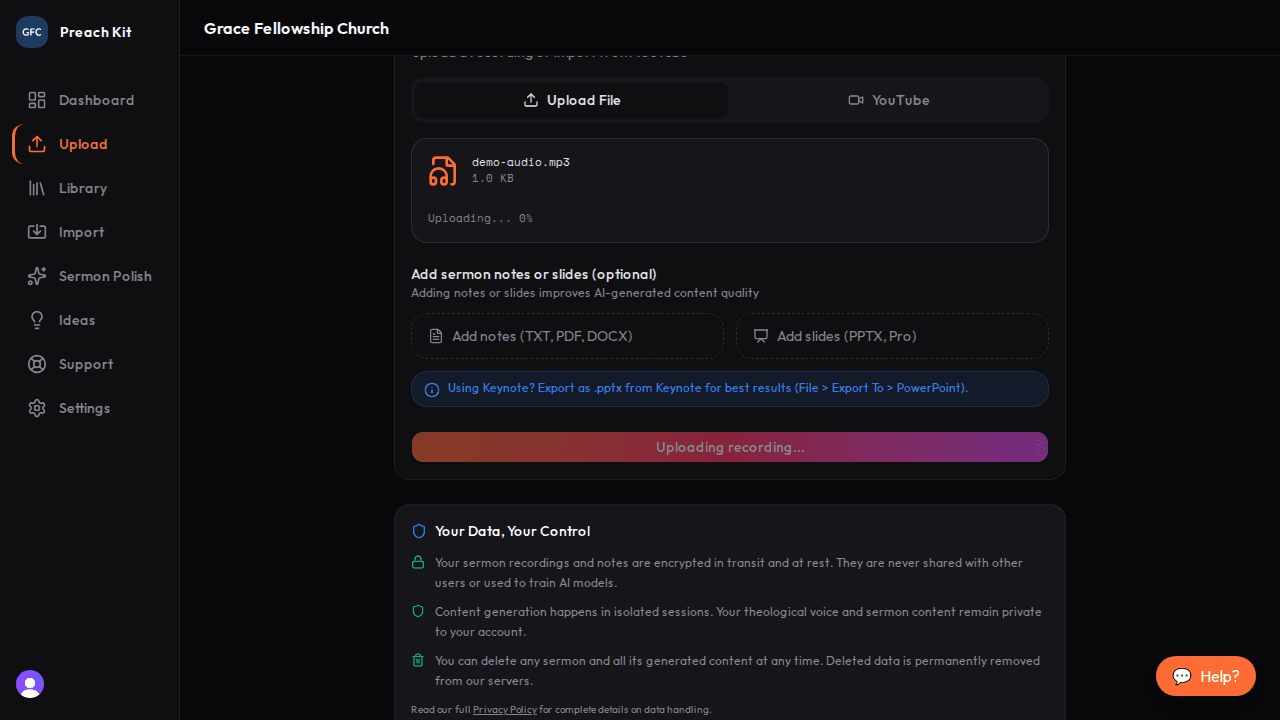
Keynote users: export first, then upload TipIf you use Apple Keynote, you cannot upload a .key file directly. Export it first: in Keynote, go to File > Export To > PowerPoint and save as a .pptx file, then upload that file.
Continue with your upload
Once you are happy with the files attached (any combination of recording, notes, and slides), click Continue to Details to move to the next step. You can remove any file at any time before clicking Generate by clicking the X on its card.
Common Questions
Do I have to attach both notes and slides? No. You can attach one, both, or neither. Each one you add improves output quality incrementally.
What if my notes are in a Google Doc? Download the Google Doc as a Word file (File > Download > Microsoft Word .docx) and upload the .docx.
Can I attach slides if I imported from YouTube instead of uploading a file? No. The notes and slides upload areas are only available in the file upload flow. YouTube imports rely on the video's transcript alone.
Will my notes or slides be stored and accessible later? The files are stored securely and associated with your sermon. They are not publicly accessible.
What's Next?
Check supported formats for a full list of accepted file types, size limits, and duration limits before you upload.