Upload a Sermon
How to use the three-step upload form to add a recording, fill in sermon details, and kick off content generation.
Uploading a sermon is the starting point for everything PreachKit does. The upload form walks you through three short steps — adding your file, filling in sermon details, and choosing what to generate. Once you submit, PreachKit handles the rest automatically.
What You'll Learn
- How to open the upload form
- How to add a recording by file or YouTube import
- What information to fill in on the Details step
- How to pick output types on the Generate step
- How to submit and start processing
Step-by-Step
Open the Analyze form
Click Analyze sermon in the dashboard quick actions bar, or navigate to
/analyze. The form opens to Step 1: Source.At the top of Step 1 you will see two tabs: Upload File and YouTube. Use Upload File for recordings on your computer or device. Use YouTube to import a video directly from your church's YouTube channel or any public YouTube URL.
Add your recording (file upload)
If you are uploading a file, drag it onto the large dashed drop zone or click inside the zone to open a file browser. PreachKit supports video files (MP4, MOV, WebM up to 7 GB) and audio files (MP3, WAV, M4A, AAC up to 500 MB).
A progress bar appears immediately, showing upload speed and estimated time remaining. The upload happens in the background — you can continue filling in other fields.
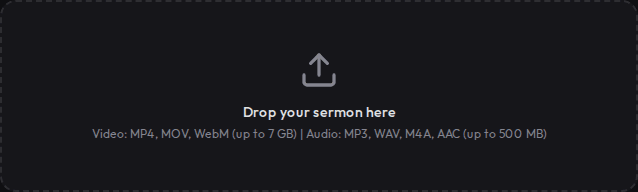
Drag a file here or click to browse When the upload finishes, the file card shows a green Uploaded badge.

Upload in progress — speed and time remaining are shown Add your recording (YouTube import)
If you choose the YouTube tab, you have two options:
- My Videos — if your YouTube channel is connected in Settings, browse and select a video from your channel
- Paste URL — paste any public YouTube video URL; PreachKit will fetch the available transcript
Fill in the title, date preached, and speaker fields (they auto-fill from YouTube metadata if left blank), then click Import from YouTube.
Fill in sermon details
Click Continue to Details. On this step, fill in:
- Title (required) — the sermon name, used in all generated content and in your library
- Date Preached — the Sunday or date this sermon was delivered
- Series Name — the teaching series this belongs to, if any
- Speaker — pre-filled from your church's default speaker setting; change it if someone else preached
- Scripture References — type a reference like "Romans 8:1" and press Enter to add it; repeat for multiple passages
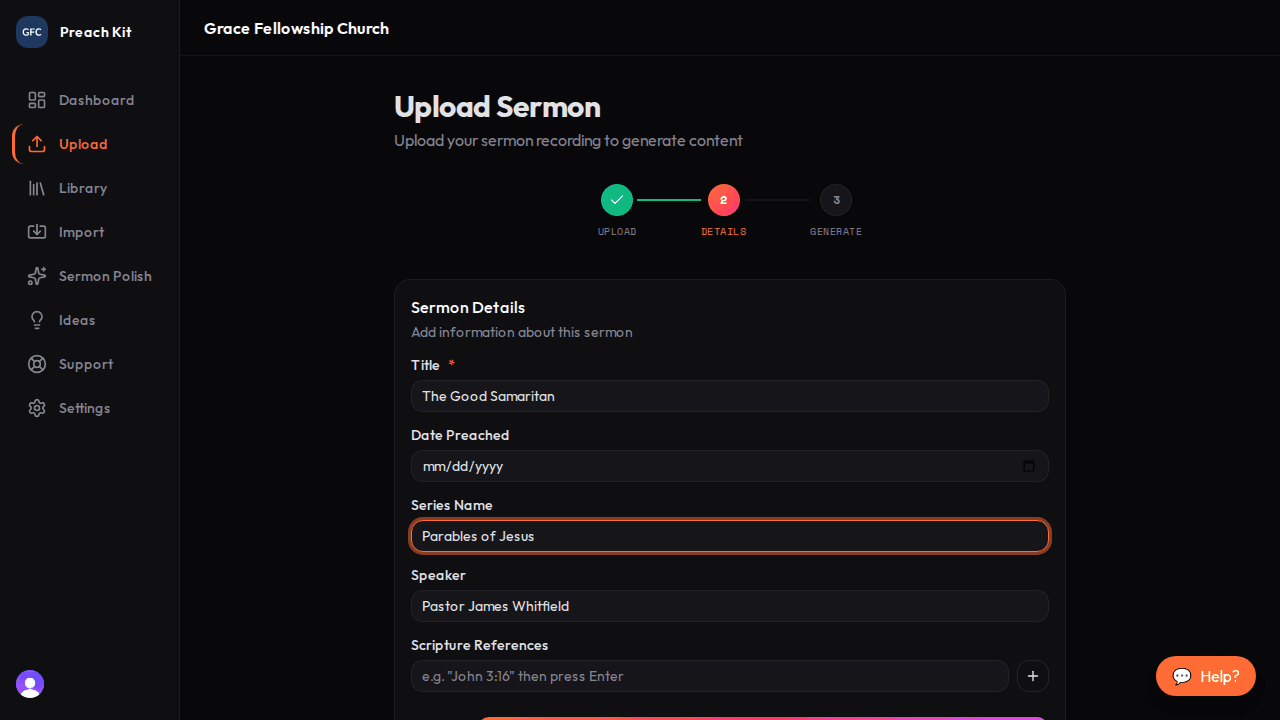
Sermon Details — title is required; everything else is optional but recommended Click Continue to Generate when done.
Choose what to generate
On the Generate step, check the boxes for each content type you want. You must select at least one, unless you check Let me review the transcript before generating — in which case, PreachKit transcribes and pauses for your review before writing any content.
Optionally click Customize sliders to fine-tune writing tone, length, and style.
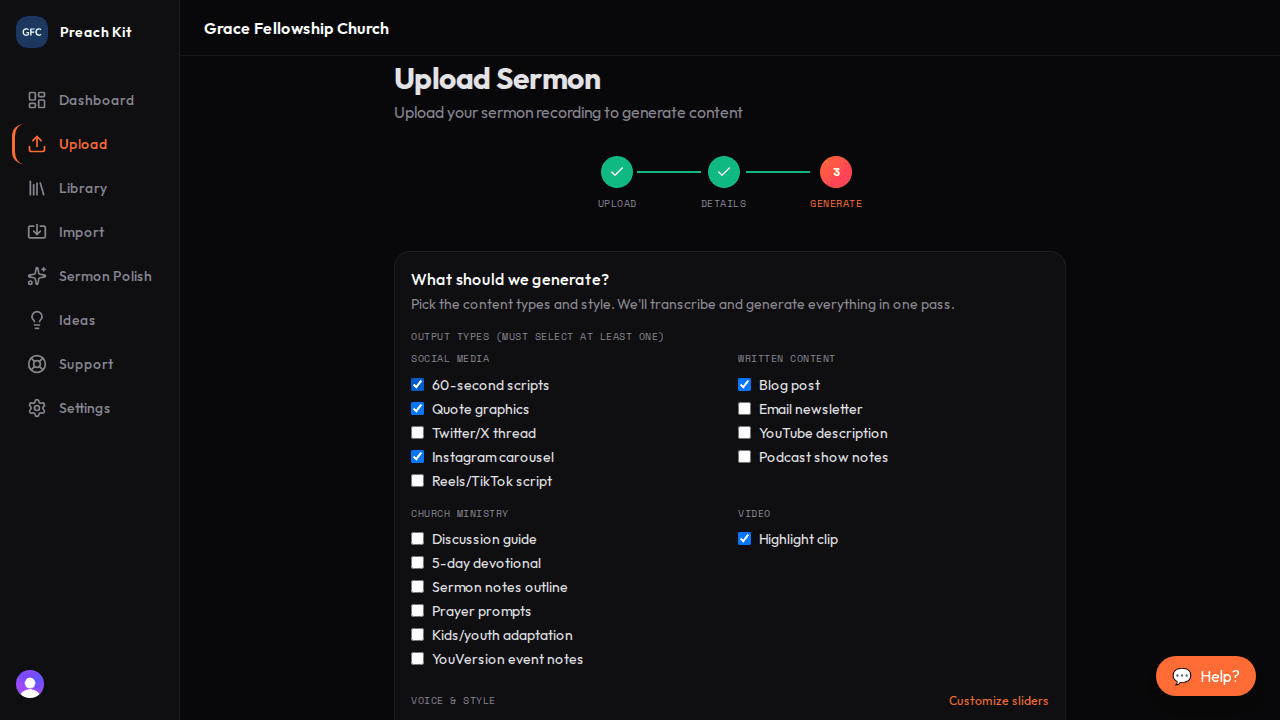
Choose your output types — you can select as many as you like Click Upload and generate to submit. PreachKit redirects you to the sermon page and begins processing.
The form saves a draft automatically every time you make a change. If you close your browser and come back, a blue banner will offer to restore your draft so you do not have to start over.
Common Questions
Can I upload more than one sermon at a time? Each upload creates one sermon. Submit them one at a time — processing runs in the background so you can start a second upload while the first is still processing.
What if I selected the wrong file? Click the X button on the file card to remove it, then add the correct file. You can do this at any point before clicking Generate.
Is the Title field really required? Yes. The title is used throughout PreachKit — in your library, in generated content, and in email notifications. It cannot be left blank.
What's Next?
Learn how adding notes and slides to your upload improves the quality of the content PreachKit generates.