YouTube Description
A complete YouTube video description with chapter markers, scripture list, church info, and hashtags — ready to paste into YouTube Studio.
When someone finds your sermon on YouTube, the description is what helps them decide to watch, helps search rank it, and gives them something to reference after. The YouTube Description output builds a complete, structured description from your transcript so you never have to write one from scratch again.
What You'll Get
A plain-text description ready to paste into YouTube Studio, containing:
- A 2–3 sentence sermon summary positioned at the top where YouTube shows the preview
- Chapter markers — timestamps tied to the major topic shifts in your transcript (format:
0:00 - Introduction,5:30 - Main Point 1) - A complete scripture reference list of every passage cited in the sermon
- Church info section with your church name, website, and social media links drawn from your profile
- 5–8 hashtags relevant to the sermon's topic and style
If you have a YouTube channel name, speaker name, Instagram handle, or website set in your profile, PreachKit incorporates them automatically.
Editing and Customizing
Open the output
From your sermon's page, click the YouTube Description tile. The full description opens as a plain-text block.

Click to open the description Check the chapter timestamps
Chapter markers are derived from topic shifts in the transcript. Scan them against your own memory of the sermon — if a timestamp seems off by a few minutes, edit it directly. Accurate chapters significantly improve viewer experience and watch time.
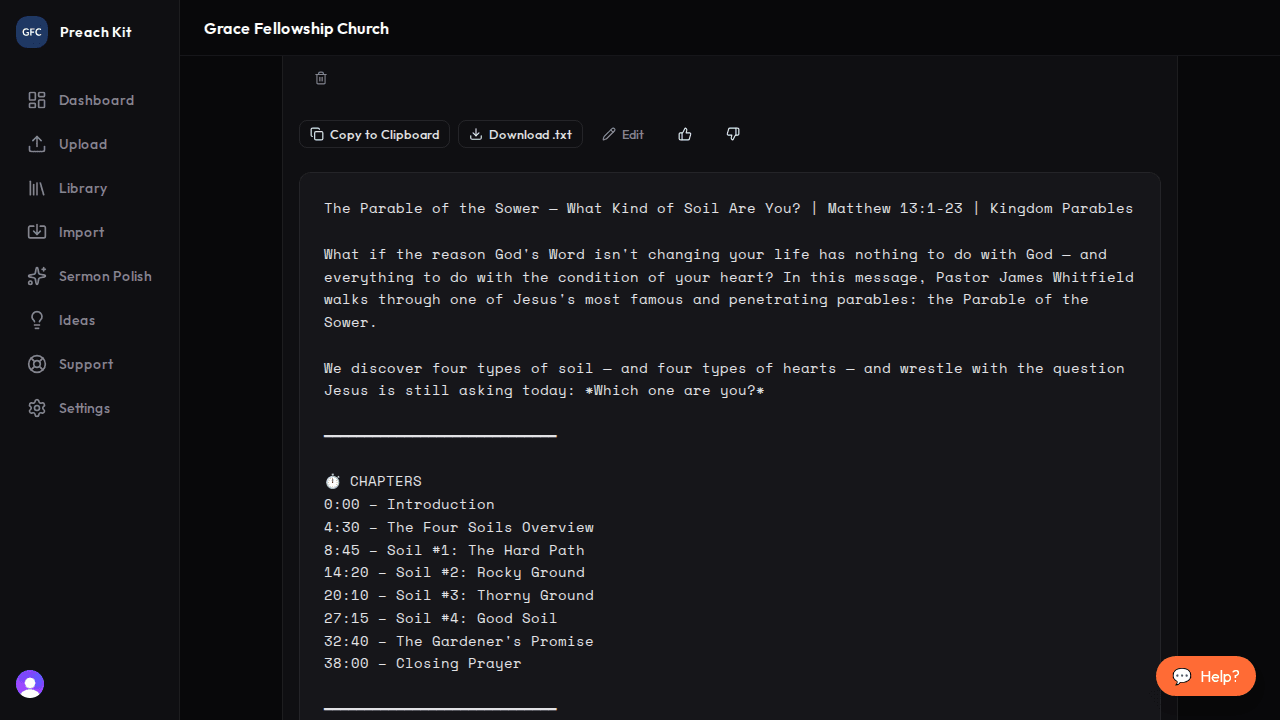
Edit chapter timestamps directly before copying Copy and paste into YouTube Studio
Click Copy. In YouTube Studio, open your video, go to Details, click into the Description field, and paste. The structure will appear correctly. Add your thumbnail alt text and end-screen details separately — those are outside the description field.
YouTube chapters only activate when timestamps are in the correct format (0:00, 1:23, etc.) and the first timestamp is 0:00. PreachKit formats them correctly by default, but double-check this if you edit any timestamps.
Tips for Best Results
- Upload your sermon notes before generating — they help PreachKit identify topic transitions more accurately for the chapter markers.
- Add your YouTube channel name, website, and Instagram handle to your church profile settings before generating. PreachKit fills in the social links section automatically with whatever is in your profile.
- The hashtag section at the end of the description helps YouTube surface your content in search. Leave the generated hashtags as-is unless they do not accurately reflect the sermon topic.
Plan Availability
The YouTube Description is available on all paid plans.
Common Questions
Can I regenerate? Yes — click Regenerate for a fresh version. Each regeneration uses one generation credit. The chapter timestamps may vary slightly between generations.
What if my chapter timestamps are wrong? Click the timestamp text to edit it. Update the time to match where the topic actually shifts in your video. Accuracy matters here — incorrect chapters frustrate viewers.
Does PreachKit upload my video to YouTube? No. PreachKit generates the description text only. Upload your video through YouTube Studio as usual, then paste in the description.
What's Next?
If your sermon is also a podcast episode, generate Podcast Show Notes for your audio audience. Or see the overview for all 16 content types.