Church Setup
Set up your church profile — name, denomination, logo, brand colors, and default speaker — so every piece of generated content reflects your church.
Before you upload your first sermon, it is worth spending two minutes on your church profile. The details you enter here — your church name, denomination, logo, and brand colors — flow into the content PreachKit generates, making everything feel consistent and on-brand from day one.
What You'll Learn
- Where to find the church settings page
- How to set your church name, denomination, and default speaker
- How to upload your church logo
- How to set your primary and secondary brand colors
Step-by-Step
Open Settings
Click your church name or avatar in the sidebar, then choose Settings. Alternatively, navigate directly to
/settings. The settings page opens to the Profile tab by default.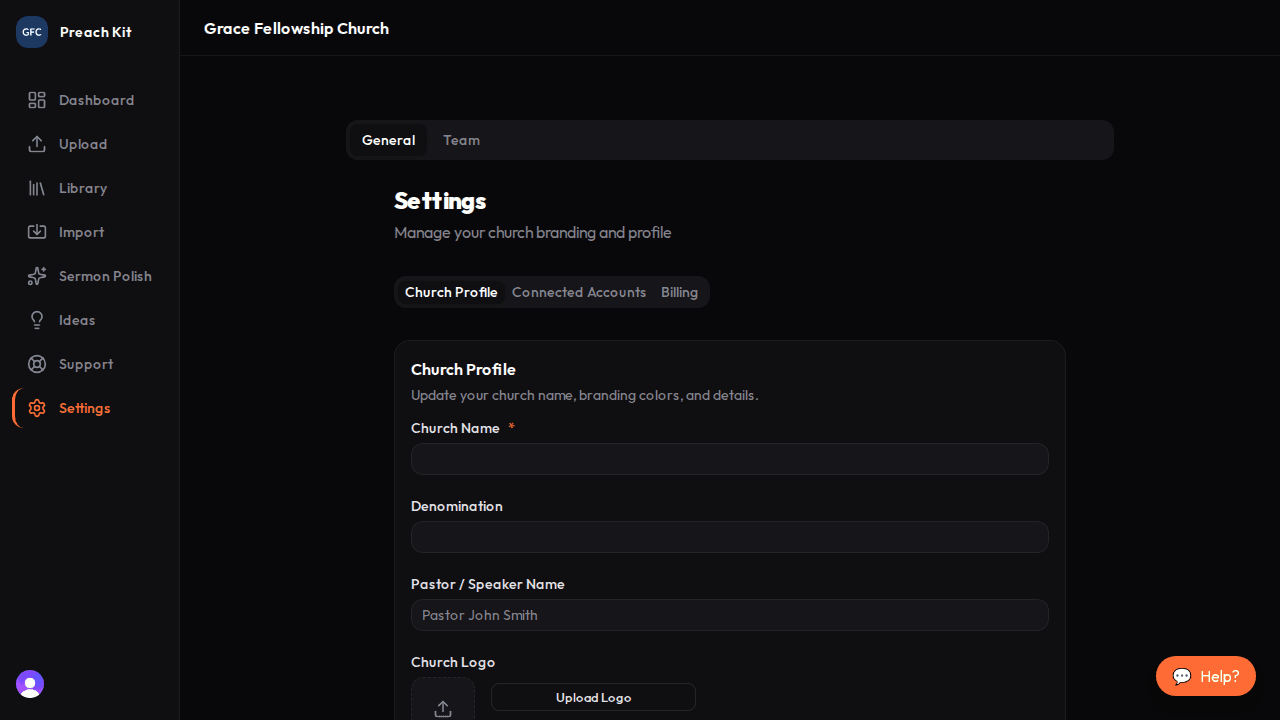
Settings — Profile tab Fill in your church details
On the Profile tab, enter:
- Church name — used in greetings, generated copy, and emails your team receives
- Denomination — optional, but helps the AI tailor theological tone (e.g., Reformed, Pentecostal, non-denominational)
- Default speaker — the name pre-filled in the upload form for every new sermon; saves time if one pastor preaches most weeks
- Website URL and Instagram handle — optional, used to contextualise generated social posts
Click Save changes when you are done.
Upload your church logo
Still on the Profile tab, click Upload Logo. Select a PNG or JPG from your computer. PreachKit uploads the file and shows a preview.
After uploading, click Extract colors from logo if you would like PreachKit to automatically suggest your primary and secondary brand colors based on the logo image. You can always adjust the colors manually afterward.
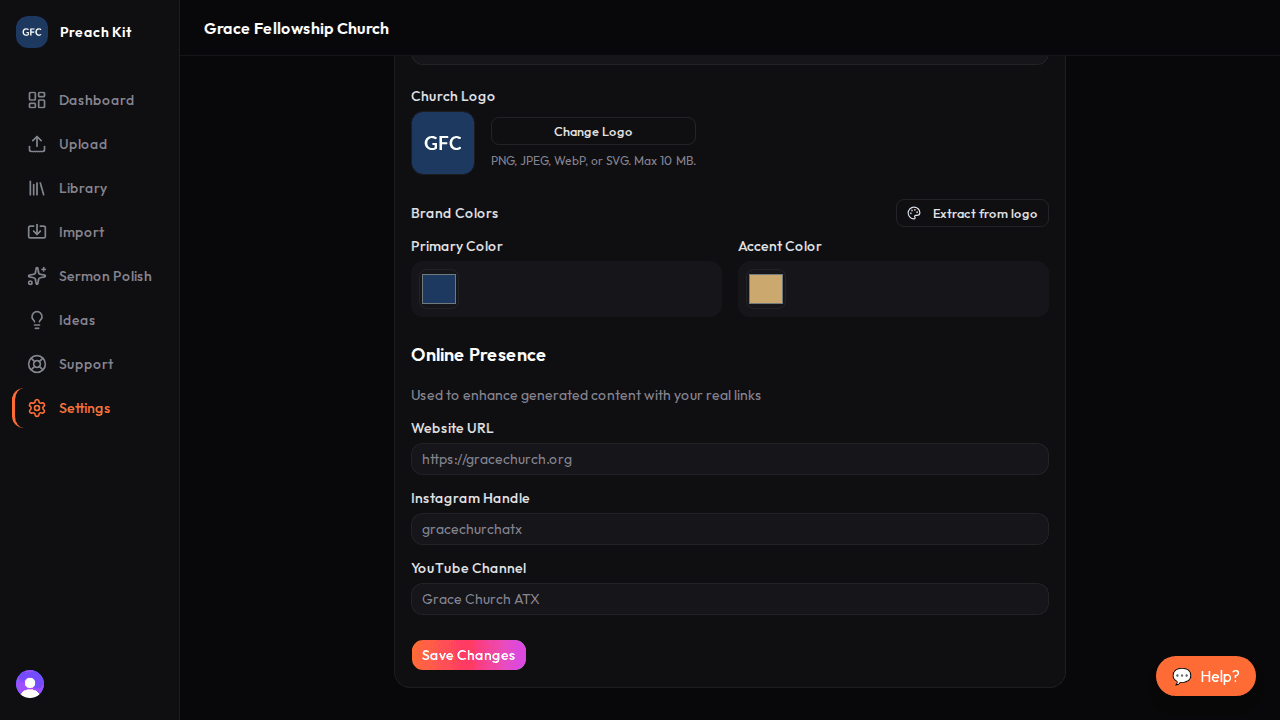
Logo uploaded — click 'Extract colors' to auto-fill brand colors Click Save changes to apply the logo.
Set your brand colors
Switch to the Branding tab. You will find two color pickers:
- Primary color — main accent color used in generated graphics and templates
- Secondary color — complementary color for highlights and secondary elements
Enter a hex code directly (e.g.,
#1e3a5f) or use the color picker. If you ran the logo color extraction in the previous step, these may already be populated.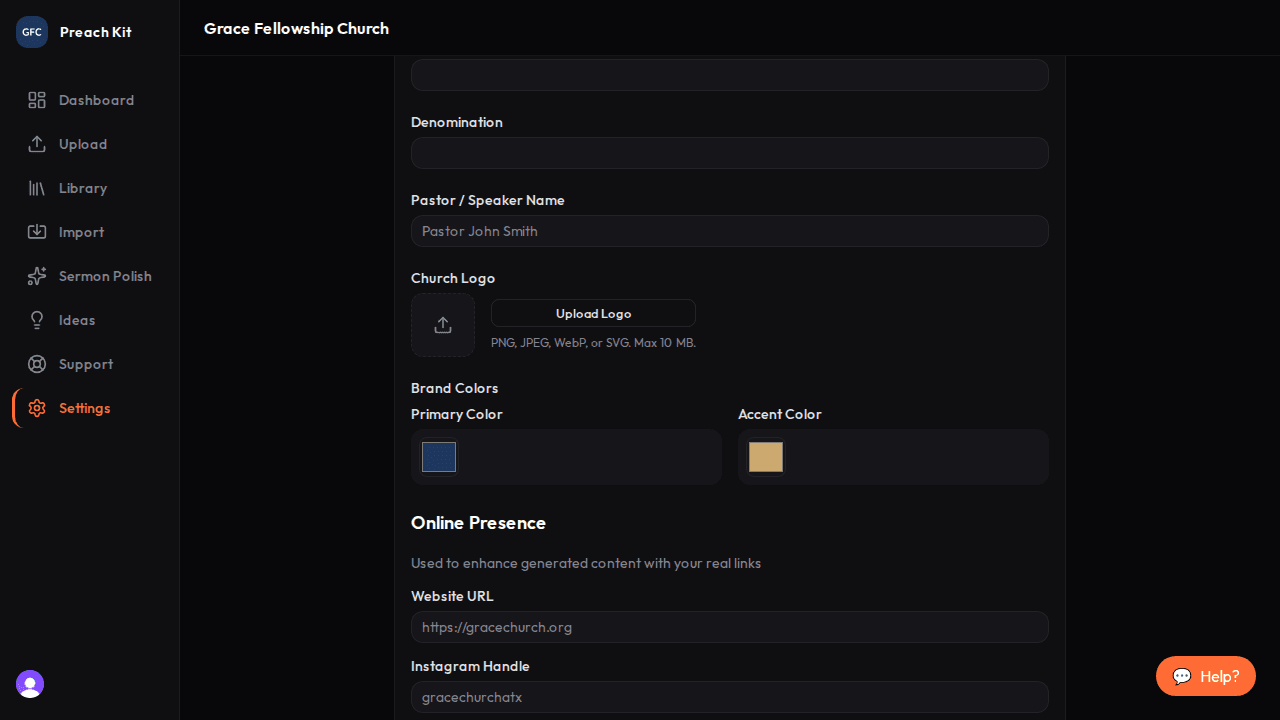
Brand colors — enter hex codes or use the picker Click Save changes.
Only church owners and admins can change the church profile. Team members with the Viewer role will not see a Save button.
Common Questions
Can I change these settings later? Yes, any time. Open Settings and update whatever you need. Changes take effect on the next sermon you generate — existing content is not retroactively updated.
What if I do not know my denomination? Leave it blank. The AI uses the transcript and your church name as context and will still produce good output.
Does the logo appear in generated content? Logo support in generated graphics is coming soon. Setting it now means you will be ready when that feature launches.
What's Next?
Once your profile is set, learn about PreachKit's plans and usage limits so you know how many sermons you can process each month.