Navigating the Dashboard
A tour of every section on the PreachKit dashboard — quick actions, account health, in-progress sermons, latest content, and more.
The dashboard is your home base in PreachKit. Everything you need — your content, usage stats, in-progress sermons, and quick actions — is on one scrollable page. Here is what each section does.
What You'll Learn
- What the quick action buttons do
- How to read your account health strip
- How to find sermons that need attention
- Where to see your latest generated content
- What the Ministry Snapshot shows
The Dashboard Sections
Welcome bar and quick actions
At the top of the page you will see a greeting that includes your name and church name, plus today's date. Below the greeting is a row of quick action buttons:
- Analyze sermon — goes directly to the Analyze flow (file upload or YouTube import)
- Start Polish Session — opens an AI-assisted sermon editing session (Starter and Growth plans)
- Browse Library — opens your full sermon library
- View Ideas Board — shows a board of content ideas generated from your sermons
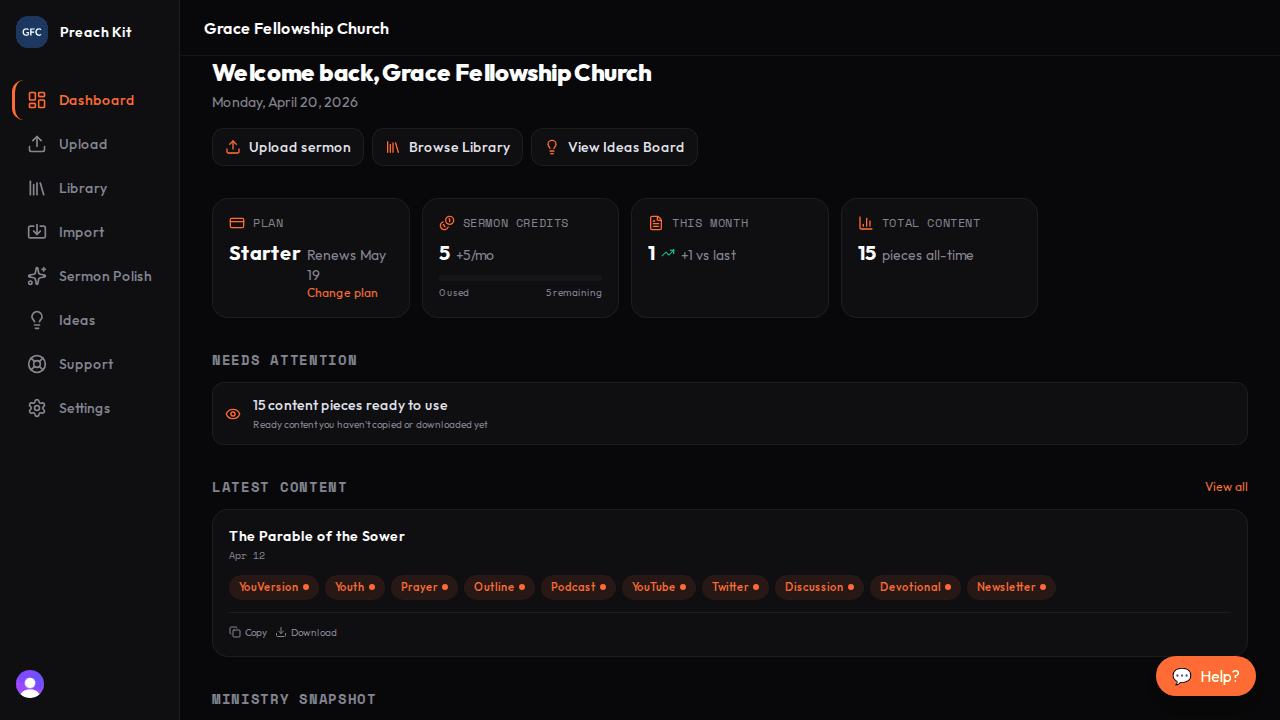
Welcome bar — your starting point each time you log in Which buttons appear depends on your plan and your role. Viewers do not see the Analyze button.
Account health strip
Just below the welcome bar is a row of stat cards showing your account at a glance:
- Plan — your current plan name, renewal date, and a link to change plans
- Sermon Credits — how many credits you have available and how many you have used this month
- Polish Credits — available on paid plans; tracks AI editing sessions
- This Month — number of sermons processed this month, with a trend arrow compared to last month
- Total Content — all-time count of generated content pieces
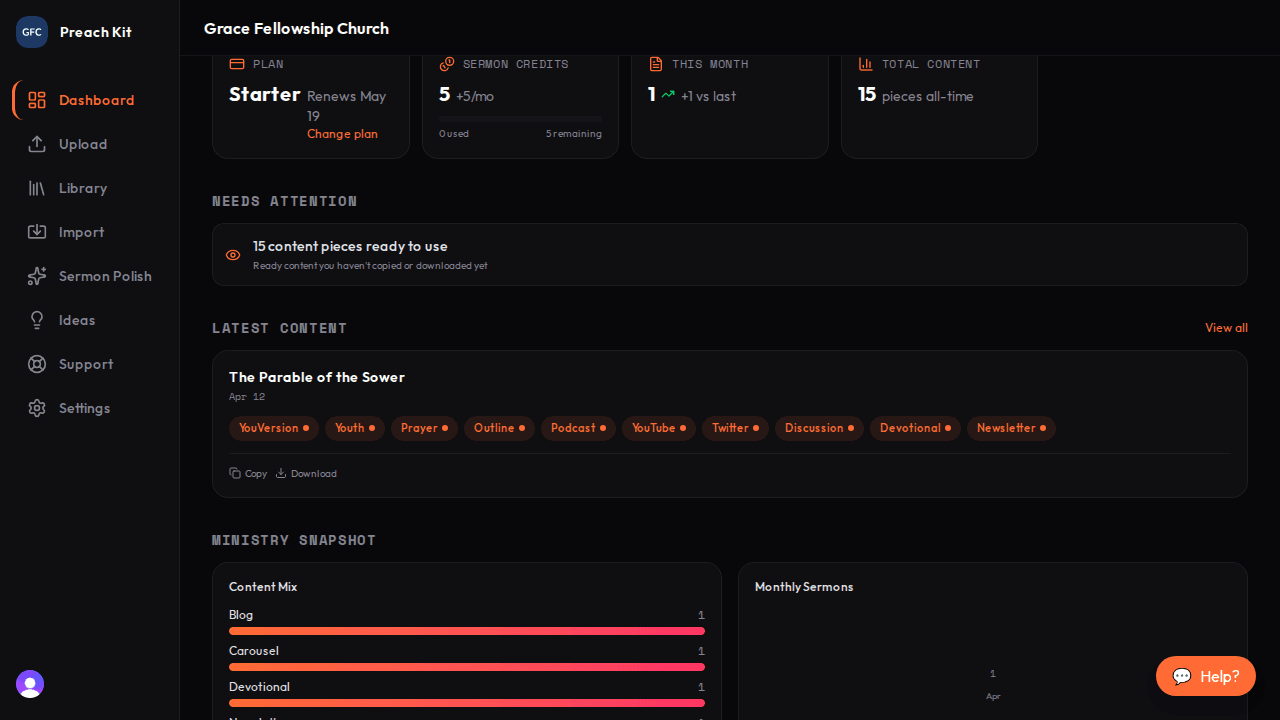
Account health strip — credits and usage at a glance Needs Attention
This section surfaces anything that requires your action:
- In progress — sermons currently uploading, transcribing, or generating, with a live progress bar
- Failed — sermons that encountered a problem, with an error message and a link to retry
- Expiring polish sessions — AI editing sessions that will expire soon, with a countdown
- Unused content — a nudge when you have generated content you have not yet copied or downloaded
If everything is on track, this section shows "All caught up" and stays out of your way.

Needs Attention — only appears when something needs your focus Latest Content Ready
This section shows the most recently generated content pieces, grouped by sermon. Each piece shows the output type (e.g., Social Post, Bulletin Notes), the sermon title, and the date preached. Click any piece to open the full content view, or use the Copy and Download buttons to grab it immediately.

Latest Content — ready to copy or download Ministry Snapshot and Polish Trends
Further down the page (Growth plan and above), you will find:
- Ministry Snapshot — charts showing which output types you use most and how many sermons you process per month
- Polish Trends — a view of how your sermon writing quality is trending over time based on polish session scores
These sections are hidden on the Free plan.
Content Schedule Glance
If you have set up a content schedule, the bottom of the dashboard shows upcoming scheduled posts so you can see what is queued to go out next. If you have not set up a schedule yet, this section is hidden.
The dashboard is personalised by your role. Viewers see content and stats but not upload or editing actions. Only owners see billing details and the Change plan link.
Common Questions
Why do some sections not appear for me? Section visibility depends on your plan and your role within the church. Some features are gated to Starter or Growth plans, and some actions require the Admin or Owner role.
Can I reorder or hide dashboard sections? Not currently. The layout is fixed, but sections that are not relevant to your plan are hidden automatically.
How often does the dashboard refresh? The dashboard loads fresh data each time you visit the page. Processing progress updates in real time on the sermon detail page.
What's Next?
Ready to start processing? Head to uploading your first sermon for a full end-to-end walkthrough.