Your First Sermon
A complete walkthrough from uploading your first recording to viewing your finished content — start to finish in minutes.
PreachKit takes your sermon recording and automatically produces written content your team can use immediately — social posts, bulletin summaries, discussion questions, and more. This walkthrough covers the full journey from first upload to finished outputs.
What You'll Learn
- How to upload your first sermon recording
- How to fill in sermon details
- How to choose what content to generate
- What the processing stages look like
- Where to find your finished content
Step-by-Step
Go to Analyze Sermon
From your dashboard, click the Analyze sermon quick action button at the top of the page. This opens the three-step Analyze flow.
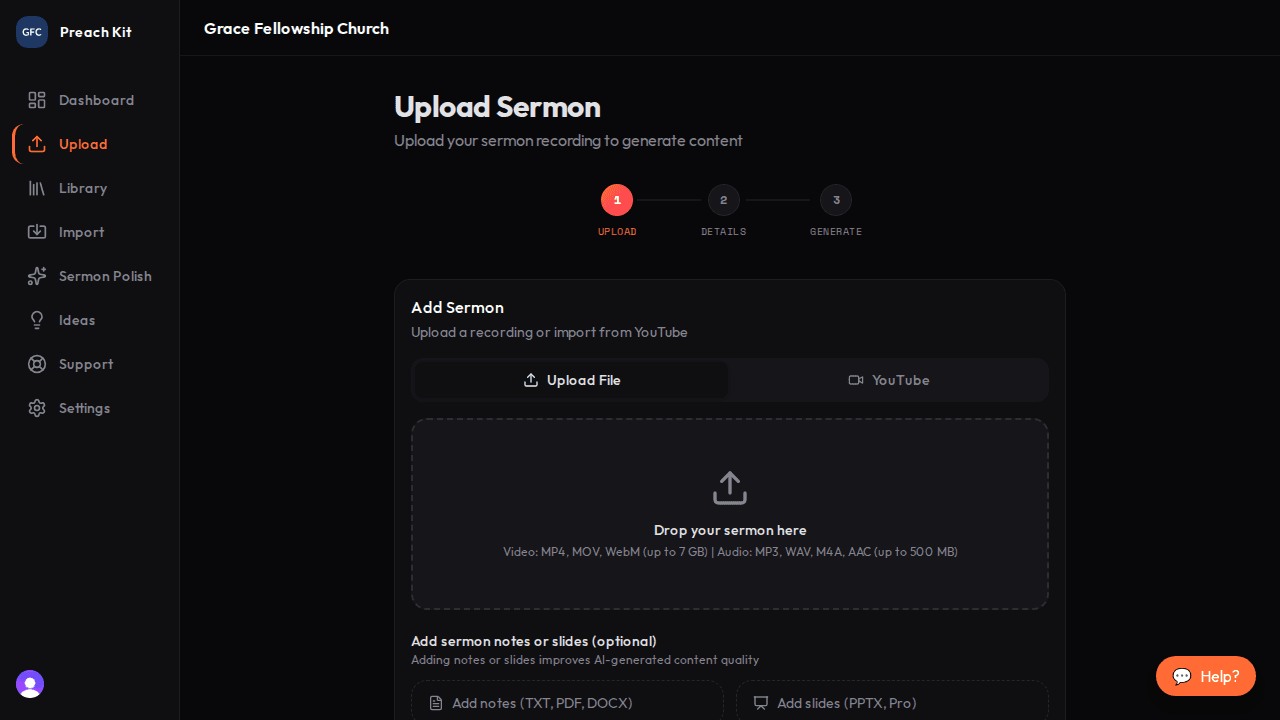
Step 1 — pick a source Add your recording
Drag your video or audio file onto the large drop zone, or click inside it to browse your files. PreachKit immediately begins uploading in the background — you will see a progress bar with upload speed and estimated time remaining.
While the recording uploads, you can optionally add your sermon notes (TXT, PDF, or Word) and your presentation slides (PPTX) using the smaller upload areas below. These are optional but improve the quality of generated content.
Once the upload finishes, the recording card shows a green Uploaded badge. Click Continue to Details.
Add sermon details
Fill in the sermon title (required), date preached, series name, speaker name, and any scripture references. Scripture references are added one at a time — type a reference like "John 3:16" and press Enter or click the plus button to add it.
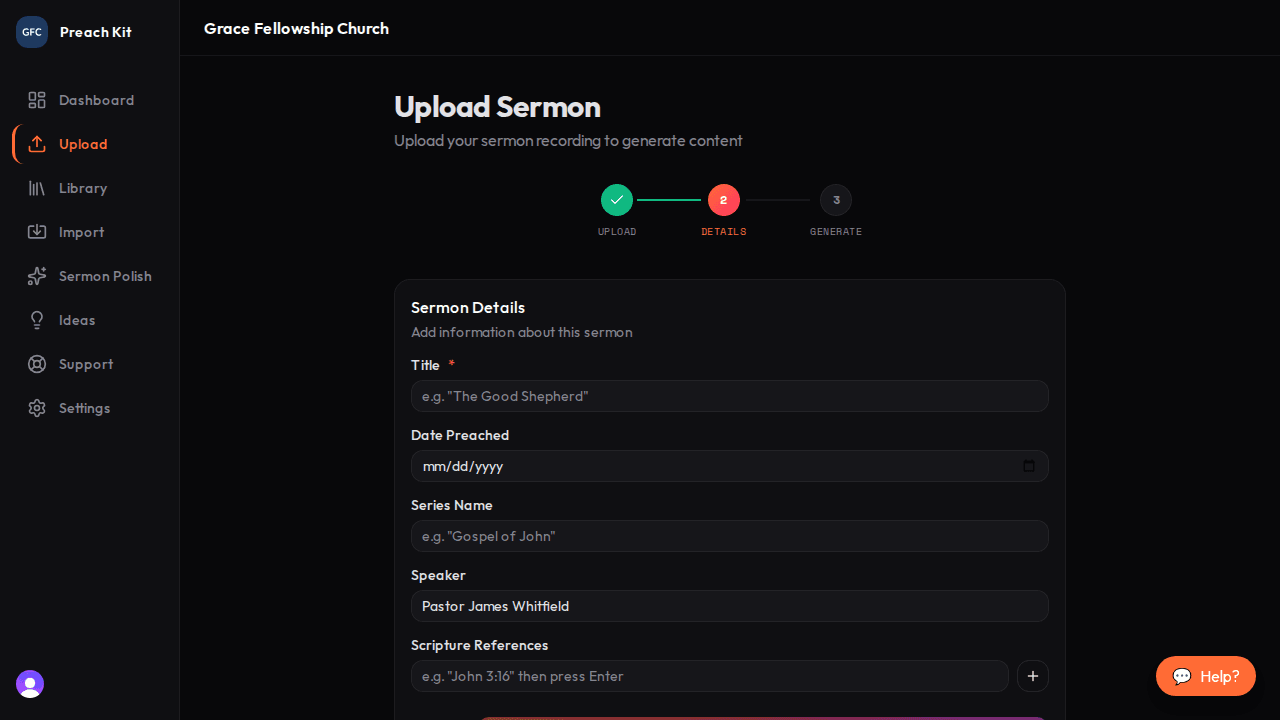
Step 2 — Sermon Details When you are done, click Continue to Generate.
Choose what to generate
Check the boxes for the content types you want — social media posts, bulletin notes, a devotional, discussion questions, and others. You can select as many as you like.
Optionally click Customize sliders to adjust the writing tone and style to better match your church's voice.
If you want to review the transcript before the content is written, check Let me review the transcript before generating. Otherwise, PreachKit handles everything automatically.
Click Upload and generate.
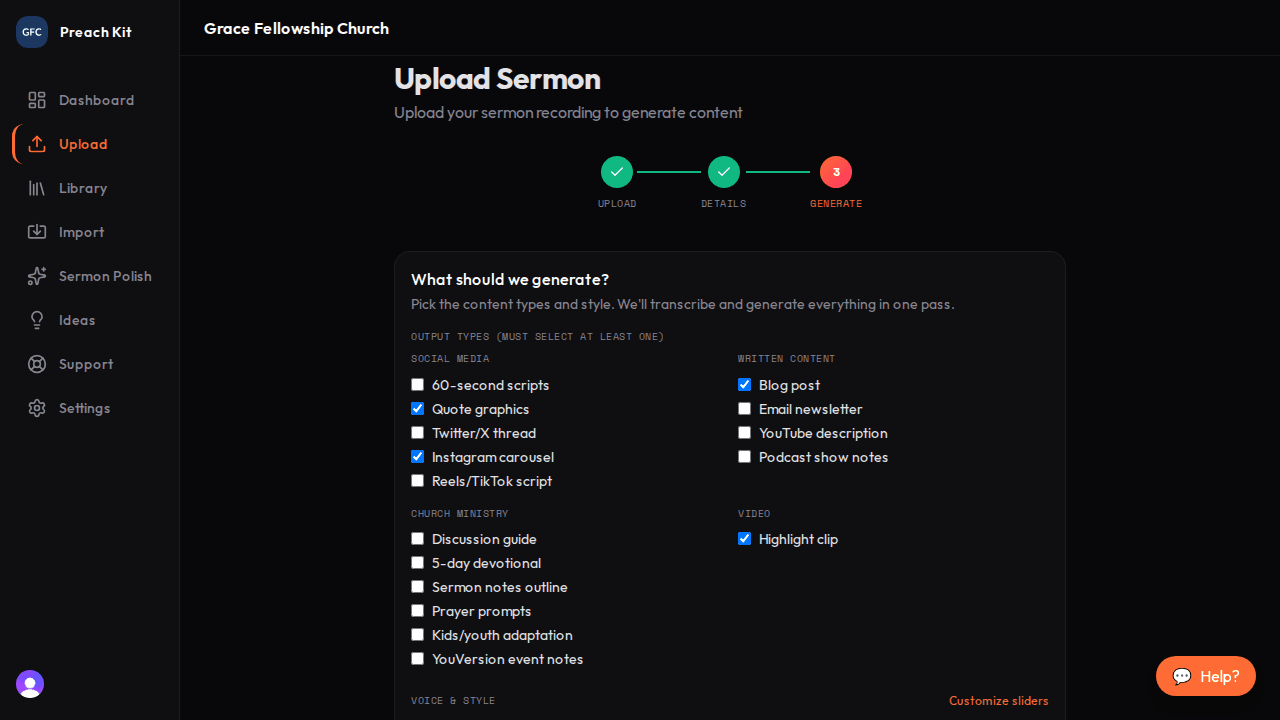
Step 3 — choose outputs and generate Wait while PreachKit processes
PreachKit immediately starts working. The sermon page opens and shows the current stage:
- Transcribing — converting speech to text
- Generating — writing your selected content types
A progress indicator shows how far along each stage is. For a 45-minute sermon, expect roughly 3–6 minutes total. You can leave the page and come back — processing continues in the background.

Processing in progress — you can navigate away safely View your finished content
When processing completes, the page refreshes and shows all generated content. Each piece has a Copy button and a Download button. Your dashboard will also show the new content in the Latest Content Ready section.
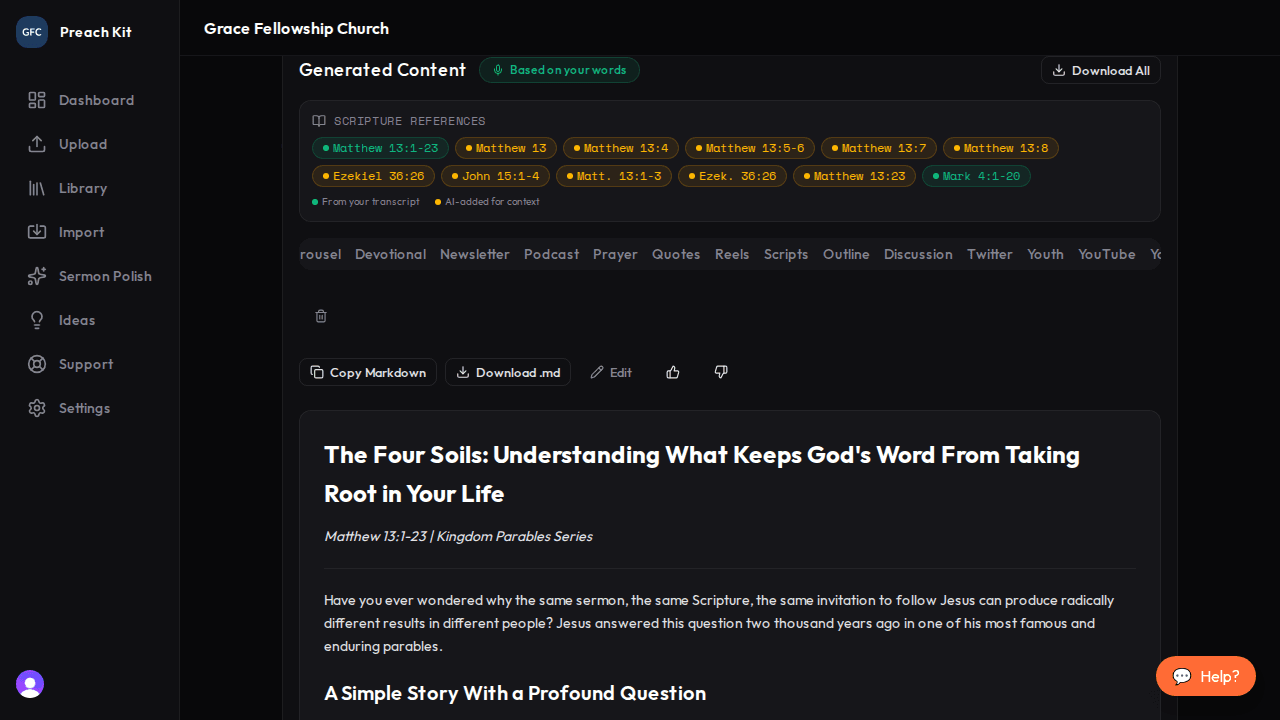
Your content is ready to use
PreachKit saves a draft of your upload automatically. If you close the browser mid-upload, you will see a "Draft restored" banner the next time you visit the upload page — just pick up where you left off.
Common Questions
Do I have to stay on the page while it processes? No. Processing happens in the background. You can close the tab and return later — your sermon will be ready when you come back.
What if processing fails? Failed sermons appear in the Needs Attention section on your dashboard. Click the sermon to see the error and retry.
Can I add notes or slides after I have already uploaded? Notes and slides can only be added during the upload step, before you click Generate. If you missed them, you can re-upload the sermon with those files attached.
What's Next?
Now that your first sermon is processed, learn how to navigate the dashboard to find your content, track usage, and manage your library.