Bulk File Import
Upload multiple sermon audio or video files at once, add metadata for each, and queue them all for transcription and auto-tagging in a single step.
Bulk import lets you bring your sermon archive into PreachKit in one go. Drop in as many audio or video files as you like, fill in the details for each, and PreachKit queues them all for transcription and AI tagging automatically. Each imported sermon consumes one token from your balance.
What You'll Learn
- What file formats are accepted
- How to add files and edit metadata before uploading
- How to review and confirm the upload
- How to check the results when uploading finishes
Step-by-Step
Open Bulk File Upload
From your dashboard, go to Sermons > Import, then click the Bulk File Upload card. You will land on a page with a large dashed drop zone.
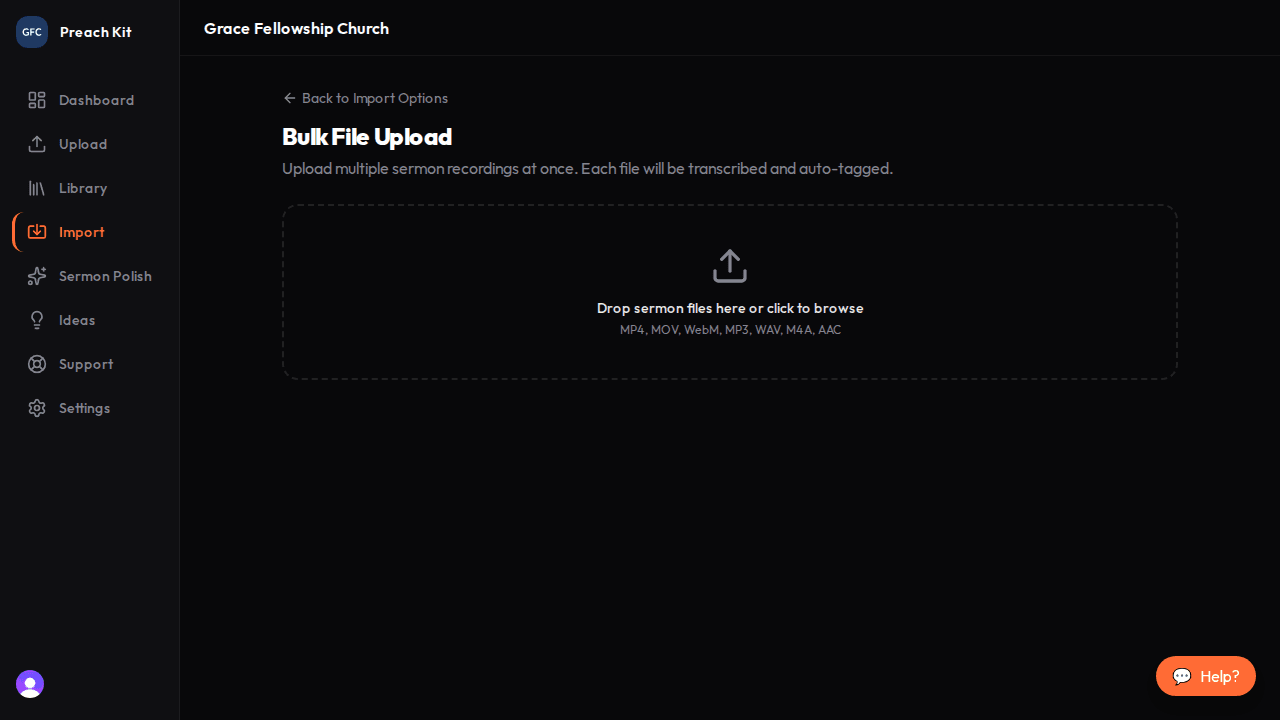
Drag files onto the drop zone or click inside it to browse Add your files
Drag one or more sermon files onto the drop zone, or click inside it to open a file browser. You can select multiple files at once.
Accepted formats: MP4, MOV, WebM (video) and MP3, WAV, M4A, AAC (audio).
Each file appears in a list below the drop zone. PreachKit automatically sets the title to a cleaned-up version of the file name — for example, a file named
2024-01-07-grace-and-truth.mp3becomes "2024 01 07 Grace And Truth". You can edit this before uploading.Edit metadata for each file
For each file in the list you can set:
- Title — required, pre-filled from the file name
- Date Preached — the calendar date the sermon was delivered
- Series — the series name if this sermon belongs to one
- Scripture — one or more scripture references, separated by commas (for example, "Romans 8:28, Psalm 23")
None of the fields except title are required, but filling them in now saves time later and improves search accuracy.

Metadata can be edited inline for each file before uploading Review and confirm
When you are satisfied with the metadata, click Review and Upload. A summary screen lists every sermon with its title, date, and series. Check the count and token cost at the top — this is how many tokens will be deducted from your balance.
Click Upload [N] Sermons to begin. Each file uploads in sequence and a progress bar shows overall status.

Review everything before committing — click Back to make changes Check the results
When uploading and import registration finishes, a results screen shows how many sermons were successfully imported and how many failed. Imported sermons immediately appear in your Sermon Library and are queued for transcription and auto-tagging.

Imported sermons are queued for processing right away Click View Sermon Library to see them, or Import More to add another batch.
Recording URLs must be reachable by PreachKit servers. If you are uploading files from your computer, the bulk upload tool handles that for you. If you are using CSV import with external URLs, make sure those links are publicly accessible.
Common Questions
How many files can I upload at once? There is no hard cap on the number of files in a single batch, but files upload sequentially — a very large batch may take a while. For archives of hundreds of sermons, consider splitting into several smaller batches.
What happens if one file fails to upload? The remaining files continue. At the end, the results screen shows which files succeeded and which failed, along with the reason. You can run a new batch to retry the failed ones.
Can I add more files to the list mid-session? Yes. While you are still on the file selection screen, click or drop again to add more files to the existing list.
What's Next?
If your sermon archive already has all metadata stored in a spreadsheet, CSV Import may be faster. To check on sermons added by YouTube auto-sync, see Import Queue.