CSV Import
Import a spreadsheet of sermon metadata and recording URLs in one upload — ideal for migrating a large existing archive.
CSV import is the fastest way to bring in a large archive when your sermon metadata is already organized in a spreadsheet. You prepare one CSV file with a row per sermon, upload it, and PreachKit creates every record at once and queues them all for transcription. Each imported sermon consumes one token.
What You'll Learn
- The required CSV column format
- How to download and fill in the template
- How to upload and preview before committing
- How to read the import results
Step-by-Step
Open CSV Import
Go to Sermons > Import, then click the CSV Import card. The page explains the required format and gives you a template to download.
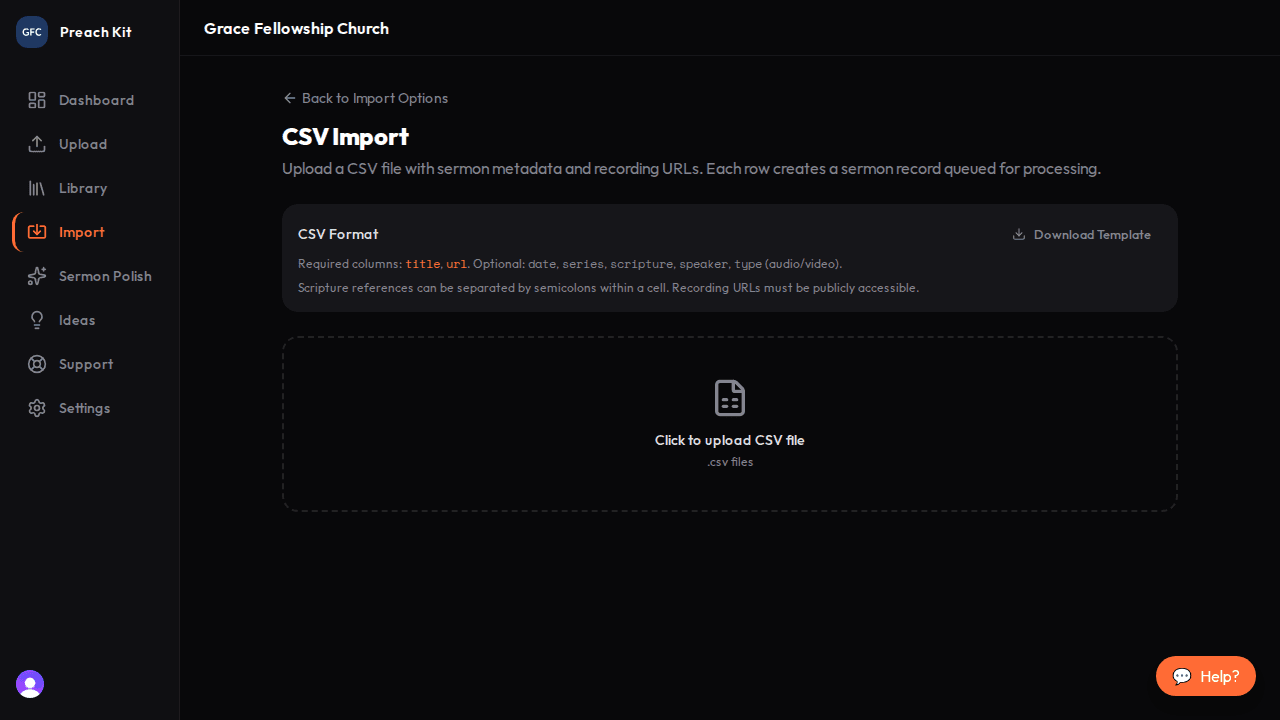
Download the template first if you are building your CSV from scratch Prepare your CSV
Your CSV file must have at minimum these two columns:
title,urlEvery other column is optional. The full list of recognized columns:
Column Aliases accepted Notes title— Required. The sermon title urlrecording_url,file_urlRequired. Public URL to the audio or video file datedatePreached,date_preachedDate in YYYY-MM-DD format seriesseriesName,series_nameSeries the sermon belongs to scripturescriptureRefs,scripture_refsSeparate multiple references with semicolons: Romans 8:28; John 3:16speakerspeakerName,speaker_nameSpeaker's full name typerecordingType,recording_typeaudioorvideo(defaults toaudioif omitted)Column headers are case-insensitive and can use spaces, underscores, or camelCase — PreachKit maps them all. Click Download Template on the import page to get a pre-formatted starter file.
NoteRecording URLs must be publicly accessible. If your files are in a private storage bucket or require a login, CSV import will not be able to fetch them. Use Bulk File Upload instead.
Upload the CSV
Click the upload area (or drag your
.csvfile onto it). PreachKit parses the file in your browser and shows a preview list of all recognized rows — no data is sent to the server yet.If there is a formatting problem (for example, a missing
titleorurlcolumn), an error message appears below the upload area explaining what needs to be fixed.
The preview lets you confirm everything was read correctly before importing Import
After reviewing the preview, click Import [N] Sermons. PreachKit sends all rows to the server in one request. A spinner shows while the import is in progress.
When finished, a results summary shows how many sermons were created and lists any rows that failed with a short explanation.

Row-level errors are listed with the row number and title so you can fix and re-import just those rows
If some rows fail, fix only the failing ones in a new CSV file and run a second import — you do not need to re-import the rows that already succeeded.
Common Questions
What happens if a row is missing a title or URL? Rows without both a title and a URL are silently skipped during parsing. They will not appear in the preview or be imported. Check the preview count against your spreadsheet row count to catch any gaps.
Can I use a URL that points to a file on my own server? Yes, as long as the URL is publicly reachable without a login. Cloud storage links (such as Amazon S3 public URLs, Dropbox direct links, or Google Drive public sharing links) all work.
Does column order matter? No. PreachKit maps columns by their header name, not their position. You can arrange columns in any order that is convenient for you.
What's Next?
After importing, your sermons appear in the Sermon Library. To track YouTube videos waiting to be imported, see Import Queue.