Import Queue
Monitor YouTube auto-sync items, skip videos that are not sermons, and retry anything that failed to import.
When you connect your YouTube channel to PreachKit, it monitors your channel for new uploads and adds each video to the Import Queue automatically. The queue gives you full visibility into what has been detected, what has already been imported, and what needs your attention.
What You'll Learn
- How to open and read the Import Queue
- What each status means
- How to skip videos that are not sermons
- How to retry failed imports
Step-by-Step
Open the Import Queue
Go to Sermons > Import, then click the Import Queue card. The queue shows all videos detected by YouTube auto-sync, with their thumbnail, title, publish date, duration, and current status.
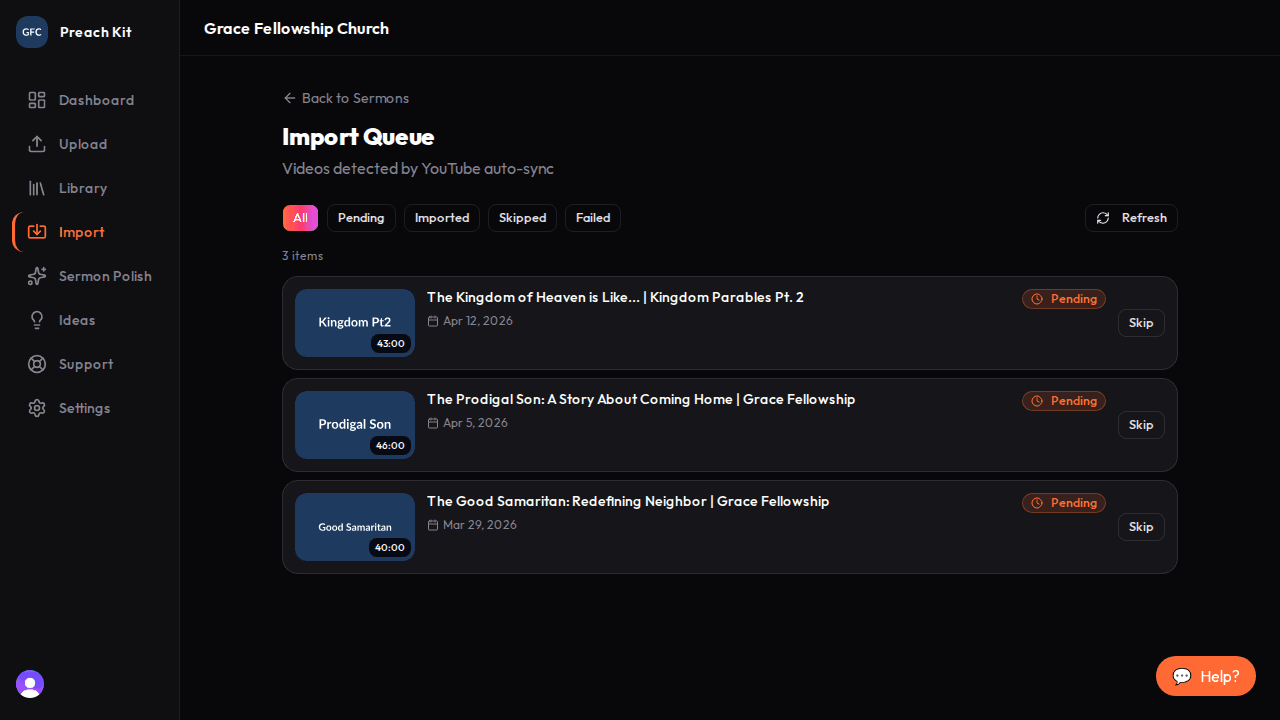
Every video your connected YouTube channel has published appears here Filter by status
Use the status filter tabs at the top to focus on the items you care about:
Tab What it shows All Every item in the queue Pending Videos detected but not yet imported Imported Videos that have been successfully added to your library Skipped Videos you have manually marked to ignore Failed Videos that encountered an error during import Click Refresh at any time to reload the list and check for newly detected videos.
Skip videos that are not sermons
If a video in the queue is not a sermon — for example, a church announcement, a choir performance, or a promo clip — click Skip on that item. It moves to the Skipped tab and will not be automatically imported.

Skip keeps non-sermon content out of your library without deleting it from YouTube Retry a failed import
If a video shows a Failed status with an error message, click Retry to move it back to Pending. The auto-sync job will attempt the import again on its next run. You can also retry items you previously skipped if you change your mind.
View an imported sermon
For videos with the Imported status, a View button appears on the right. Click it to open that sermon's detail page in your library.
The Import Queue tracks only videos detected through YouTube auto-sync. Sermons you added via Bulk File Upload or CSV Import do not appear here — those go directly into your Sermon Library.
Common Questions
Why is the queue empty even though I have YouTube videos? The queue is populated by the YouTube auto-sync feature, which requires a connected YouTube channel. Go to Settings > Accounts and link your channel first. Once connected, PreachKit will detect your existing uploads within a few minutes.
Does skipping a video remove it from YouTube? No. Skipping only removes the item from PreachKit's pending list. The video stays on YouTube completely untouched.
If a retry fails again, what should I do? Check the error message shown on the item. Common causes include a private or deleted YouTube video, or a temporary connectivity issue. If the video is public and the error persists, contact support from the help menu.
Will new YouTube uploads appear automatically? Yes. Once your channel is connected, PreachKit checks for new uploads on a regular schedule. New videos appear in the Pending tab within a short time of being published.
What's Next?
Imported sermons land in your Sermon Library. Use Search and Filter to find specific sermons once your archive grows.