Inviting Members
Send an email invitation to a new team member and walk through what they experience when they accept.
Adding someone to your PreachKit team takes two steps: you send an invite, and they click the link in their email. This article covers both sides — what you do as the person inviting, and what your new team member will see when they accept.
What You'll Learn
- Who can send invitations
- How to send an invite and choose a role
- How seat limits affect invitations
- What the invitee sees when they accept
Sending an Invitation
Open Team Settings
Go to Settings > Team. If you have permission to invite members, you will see an Invite member button in the top-right corner of the page. If you don't see the button, your role does not include invite permissions — ask your Owner or Admin.
Fill in the invite details
Click Invite member to open the invitation dialog. Enter the person's email address and choose a role:
- Editor — can create and edit content
- Member — read-only access
- Admin — manage team and content (Owner only)
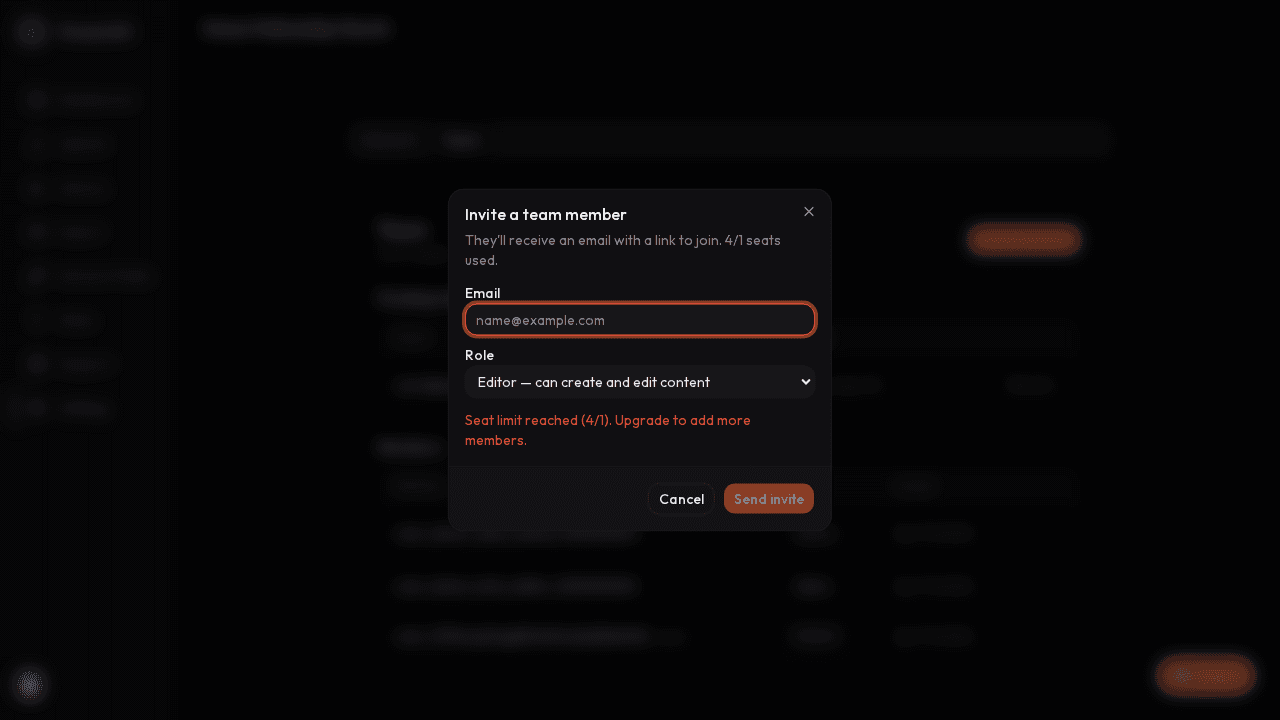
Enter an email and choose a role before sending NoteOnly the Owner can send Admin invitations. If you are an Admin, the Admin option in the role list will appear greyed out.
Check your seat count
The dialog shows how many seats are currently used. If you have reached your plan's seat limit, the Send invite button is disabled and a message explains the situation. Upgrade your plan to add more seats.
Click Send invite. The invitation is sent immediately and appears in the Pending invitations table on the Team page.
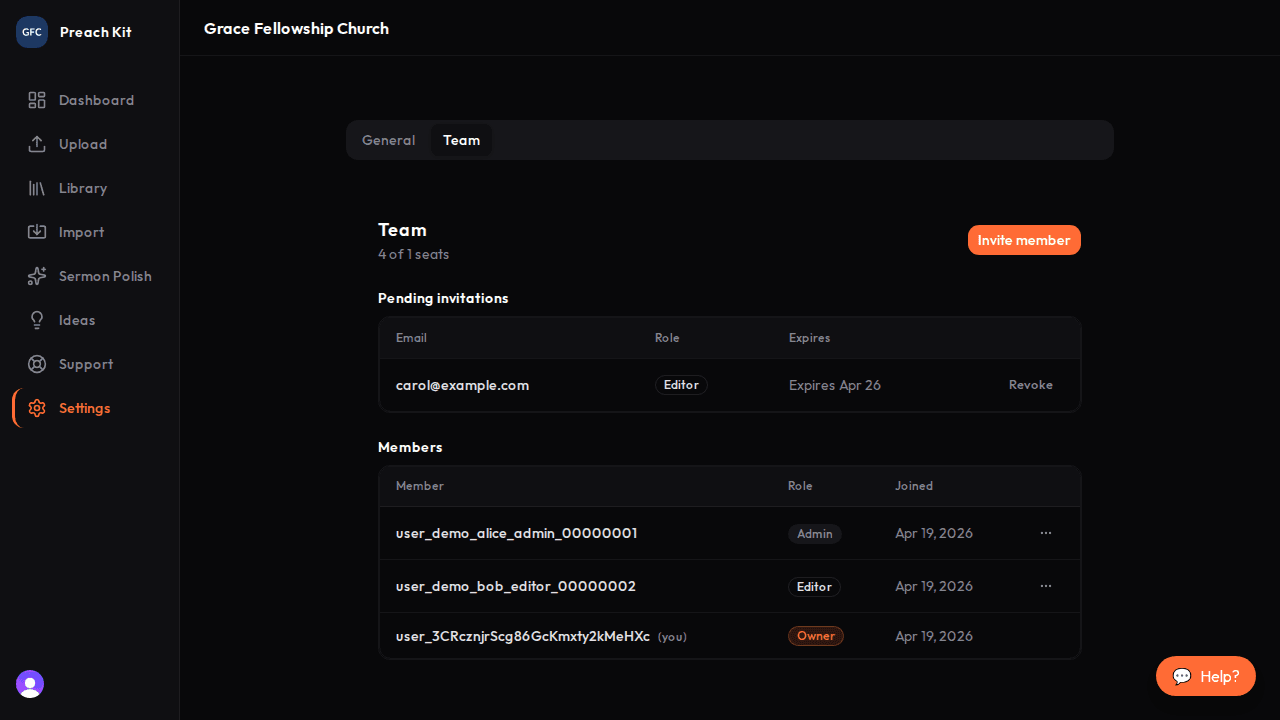
Pending invitations stay visible until accepted or expired
What the Invitee Sees
Receive the email
The invitee receives an email with the church name and a link to join. The link is valid for a limited time — if it expires, you will need to send a new invite (the old one disappears from the Pending table automatically).
Sign in or create an account
Clicking the link opens the PreachKit accept page. If the invitee does not yet have an account, they can create one from this screen. If they already have an account, they sign in.
![The Join [Church Name] screen showing the role and Accept invitation button](/_next/image?url=%2Fguide%2Fscreenshots%2Finvite-accept-screen.png&w=3840&q=75)
The accept screen — one click to join after signing in ImportantThe invitee must sign in with the same email address the invite was sent to. If they try to accept with a different email, they will see an error and can sign out and retry.
Accept and land on the dashboard
After clicking Accept invitation, they are taken directly to the church dashboard with the role you assigned.
Revoking a Pending Invite
If you sent an invite to the wrong address or want to cancel before it is accepted, go to Settings > Team, find the invite in the Pending invitations table, and click Revoke. The link in their email will stop working immediately.
Common Questions
How long does an invite link stay valid? Invites expire after a set period. The expiry date is shown in the Pending invitations table so you can tell at a glance whether an invite is still active.
Can I resend an invite? PreachKit doesn't have a resend button yet. If an invite has expired or the person didn't receive the email, revoke the old invite and send a new one.
What if the Growth plan seat limit is reached? The invite dialog shows how many seats are used. If you are at the limit, upgrade your plan before sending more invites.
What's Next?
Learn about Roles and Permissions to make sure you are assigning the right role before you send.